Starting from the home page
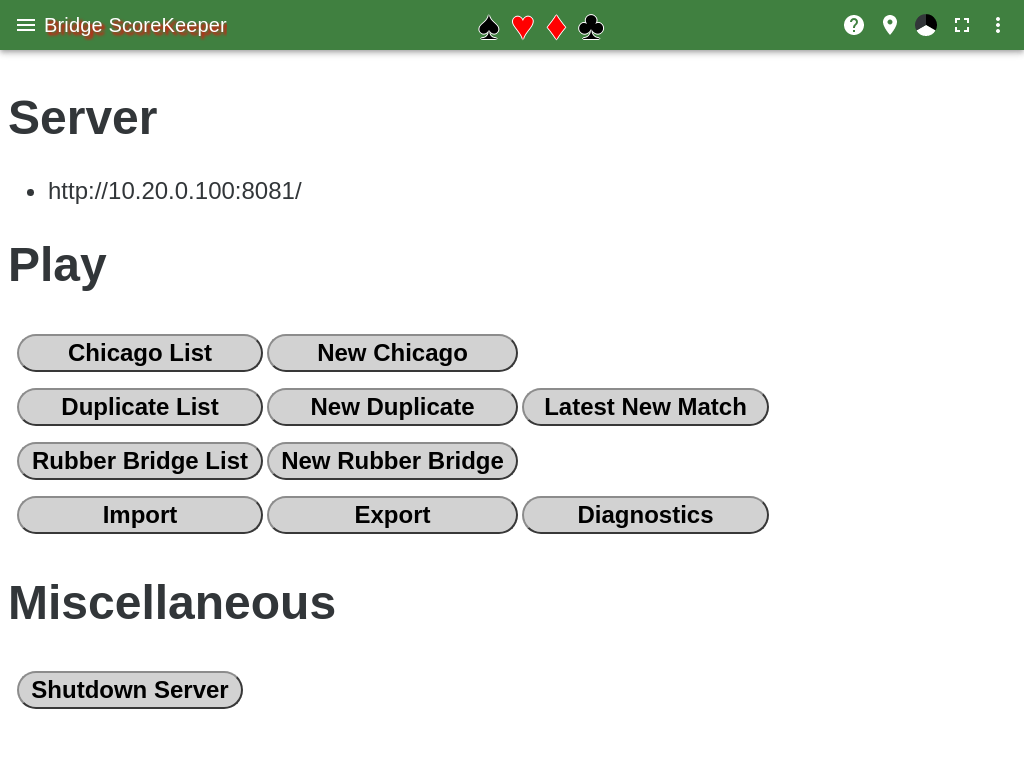
Server Section
This identifies the URL to enter in tablet browsers when playing duplicate bridge.
Play Section
This sections has buttons for listing chicago, duplicate, or rubber matches, or of starting a new match.
Hitting the Duplicate List button displays the summary page. Hitting the New Duplicate button displays the new duplicate page. Hitting the Latest New Match button displays the scoreboard page of the latest Duplicate match if it was created less than 4 hours ago. Otherwise it displays the summary page
Hitting the Chicago List button displays the summary page. Hitting the New Chicago button displays the Enter names page.
Hitting the Rubber Bridge List button displays the summary page. Hitting the New Rubber Bridge button displays the Enter names page.
Import button is used to import matches that were exported from another server. Export button is used to get a zip file that contains various matches.
Diagnostics
The Diagnostics button downloads a zip file that contains diagnostic information. This should be hit immediately after a problem is encountered. The zip file contains log files and the store (all the matches).
Miscellaneous
The Shutdown Server button is only available from the browser running on the computer that is running the server. Hitting this button will shutdown the server in an orderly fashion.
Main Menu
Items of interest on the main menu are
-
Test Hands shows how to enter the results of a hand in the various ways of playing bridge.
-
Info show information about the browser.
-
Duplicate, Chicago, and Rubber will take you to the list page for that type of playing bridge.
-
Allow Select the default is to not allow selecting text on the page. This enhances the user experience because not hitting the touch screen properly can cause text to be selected.
Help
There is a help button in the upper right corner of the page, a white circle with a question mark in it. Clicking the white circle brings up a menu for help and about.
If possible, the help menu item will show the help page for the current page.